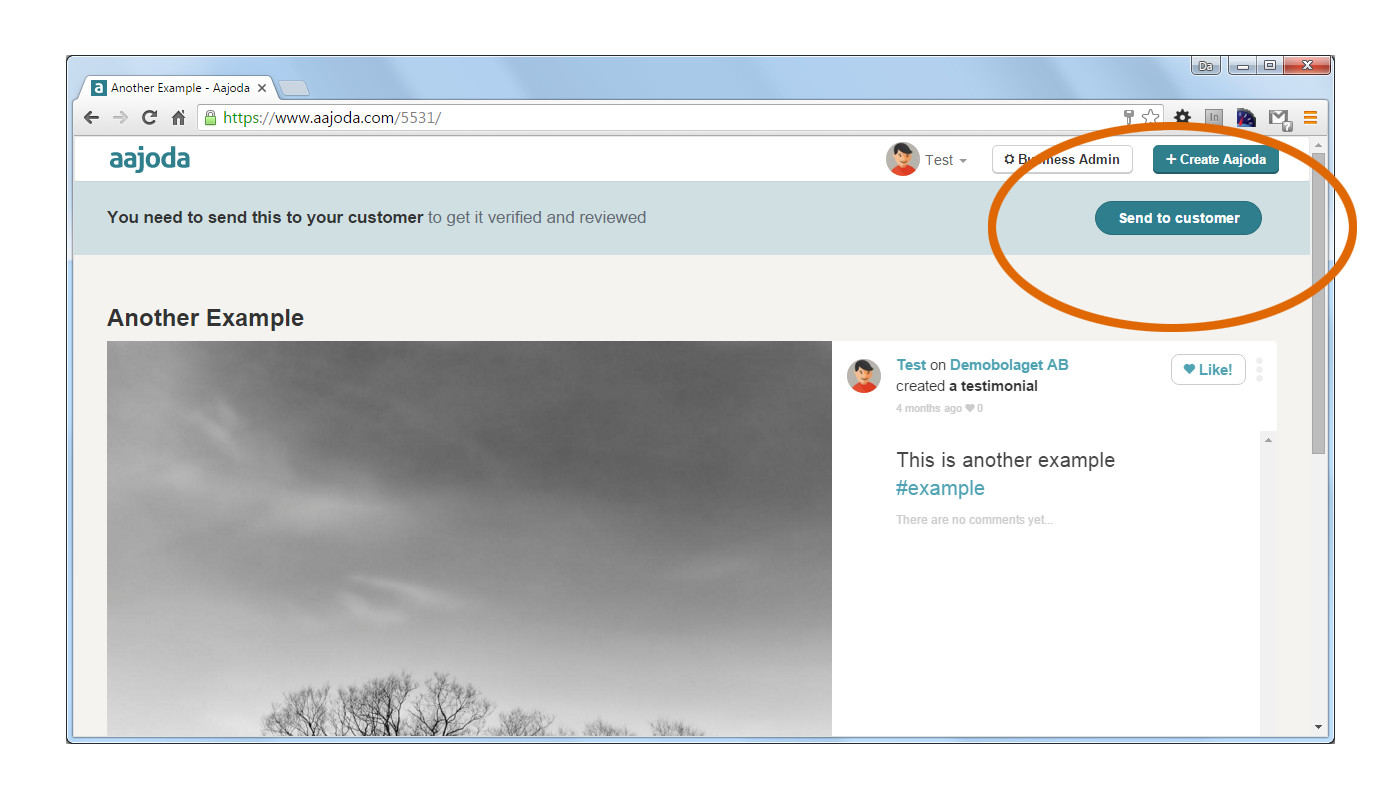
When you are creating a testimonial from your laptop or computer, it will appear a green row above, that will direct you straight to the verification process. As in the example below, click on the Send to customer green button located in the right side.
A window will appear where you need to add your customer’s details. Select Send SMS if you want to send the testimonial to your client through his mobile phone, or Send Email if you prefer to send it through his email address. The SMS is free of charge, but if you don’t have your customer’s mobile number, or you know he doesn’t use a smartphone, you can choose the second option. This is only your choice. Remember to change the country code before adding the number, if you choose to send it through SMS. Then click on Send to customer.
If you’re in a hurry, or you don’t have your customer’s contact information at hand, you can do this later by following the steps in our guide Send the testimonial afterwards.